添加内容视图
在本课中,你将学习如何修改应用程序窗口的 UI 定义文件,以添加一个文本区域 UI 元素。该文本区域将用于显示我们将在下一课中加载的文本文件的内容。
任何 GNOME 应用程序都由一个 UI 元素层次结构组成,称为小部件;GTK 允许使用 XML 定义 UI,而不是在代码中编写它们。Builder 提供的 GNOME 应用程序的默认模板使用一个 UI 定义文件来定义主应用程序窗口,我们将像编辑任何其他文件一样编辑它。
打开
text_viewer-window.ui文件,该文件位于src目录中窗口定义为 TextViewerWindow 类的 template 元素
窗口具有 property 元素,这些元素描述了各种属性的值;例如,使用 title 属性设置窗口的默认标题
窗口还具有两个 child 元素
第一个 child 元素是一个 AdwHeaderBar,用于描述标题栏的内容;在本例中,是一个带有应用程序主菜单的 GtkMenuButton
第二个 child 元素是窗口的主要内容区域
当前,主要内容由一个带有“Hello, World!”标签的 GtkLabel 小部件提供
在 template 块之外,你可以使用 menu 元素找到菜单的定义
设置主窗口的标题
找到 TextViewerWindow 定义
找到定义窗口的默认宽度和高度的 property 元素
添加以下属性
<template class="TextViewerWindow" parent="AdwApplicationWindow">
  <property name="default-width">600</property>
  <property name="default-height">300</property>
  <property name="title">Text Viewer</property>
  <property name="content">
    <object class="AdwToolbarView">
设置主窗口的开发风格
devel 风格向用户传达应用程序是一个开发快照。
找到 TextViewerWindow 定义
添加以下风格
<template class="TextViewerWindow" parent="AdwApplicationWindow">
  <property name="default-width">600</property>
  <property name="default-height">300</property>
  <property name="title">Text Viewer</property>
  <style>
    <class name="devel"/>
  </style>
  <property name="content">
    <object class="AdwToolbarView">
添加可滚动的容器
按照以下步骤将 可滚动的容器 添加到窗口
首先,你需要删除窗口中已有的 UI 元素。找到定义 GtkLabel 的 object 元素,并删除整个块
在 content 属性的 property 元素中添加以下 UI 定义,用于创建一个可滚动的容器
<property name="content">
  <object class="GtkScrolledWindow">
    <property name="hexpand">true</property>
    <property name="vexpand">true</property>
    <property name="margin-top">6</property>
    <property name="margin-bottom">6</property>
    <property name="margin-start">6</property>
    <property name="margin-end">6</property>
  </object>
</property>
可滚动的容器的定义具有以下属性
hexpand 和 vexpand 告诉容器扩展以适应父窗口的整个区域
margin-top 和 margin-bottom 告诉容器在顶部和底部边缘添加六像素的边距
margin-start 和 margin-end 告诉容器在前导和尾随边缘添加六像素的边距;前导和尾随边缘由文本方向决定
添加文本视图
按照以下步骤将 文本视图小部件 添加到可滚动的容器
为 child 属性添加一个新的 property 元素
<property name="content">
  <object class="GtkScrolledWindow">
    <property name="hexpand">true</property>
    <property name="vexpand">true</property>
    <property name="margin-top">6</property>
    <property name="margin-bottom">6</property>
    <property name="margin-start">6</property>
    <property name="margin-end">6</property>
    <property name="child">
    </property>
  </object>
</property>
添加 GtkTextView 小部件的 object 定义,并将其标识符指定为 main_text_view
<property name="content">
  <object class="GtkScrolledWindow">
    <property name="hexpand">true</property>
    <property name="vexpand">true</property>
    <property name="margin-top">6</property>
    <property name="margin-bottom">6</property>
    <property name="margin-start">6</property>
    <property name="margin-end">6</property>
    <property name="child">
      <object class="GtkTextView" id="main_text_view">
        <property name="monospace">true</property>
      </object>
    </property>
  </object>
</property>
在源代码中绑定文本视图
模板表示绑定到特定类的 UI 结构;在本例中,是 TextViewerWindow 类的 UI 定义。为了从类内部访问 UI 元素,必须使用 XML 属性 id 为 XML 中的定义分配一个标识符,并告诉 GTK 将具有相同标识符的对象绑定到实例结构中的一个成员。
打开
text_viewer-window.c文件,该文件位于src目录中找到文件顶部附近 TextViewerWindow 实例结构的定义
将
GtkLabel *label;行替换为GtkTextView *main_text_view;
struct _TextViewerWindow
{
  AdwApplicationWindow  parent_instance;

  /* Template widgets */
  AdwHeaderBar *header_bar;
  GtkTextView *main_text_view;
};
找到
text_viewer_window_class_init函数找到
gtk_widget_class_bind_template_child (widget_class, TextViewerWindow, label);行,并将label替换为main_text_viewstatic void text_viewer_window_class_init (TextViewerWindowClass *klass) { GtkWidgetClass *widget_class = GTK_WIDGET_CLASS (klass); gtk_widget_class_set_template_from_resource (widget_class, "/com/example/TextViewer/text_viewer-window.ui"); gtk_widget_class_bind_template_child (widget_class, TextViewerWindow, header_bar); gtk_widget_class_bind_template_child (widget_class, TextViewerWindow, main_text_view); }
打开
window.py文件找到 TextViewerWindow 类
将
label = Gtk.Template.Child()行替换为main_text_view = Gtk.Template.Child()
@Gtk.Template(resource_path='/com/example/TextViewer/window.ui')
class TextViewerWindow(Adw.ApplicationWindow):
    __gtype_name__ = 'TextViewerWindow'

    main_text_view = Gtk.Template.Child()

    def __init__(self, **kwargs):
        super().__init__(**kwargs)
打开 window.vala 文件
在
TextViewer命名空间中找到Window类将
private unowned Gtk.Label label;行替换为private unowned Gtk.TextView main_text_view;
namespace TextViewer {
    [GtkTemplate (ui = "/org/example/app/window.ui")]
    public class Window : Adw.ApplicationWindow {
        [GtkChild]
        private unowned Gtk.TextView main_text_view;

        public Window (Gtk.Application app) {
            Object (application: app);
        }
    }
}
打开
window.js文件找到 TextViewerWindow 类
将
InternalChildren: ['label'],行替换为InternalChildren: ['main_text_view'],
export const TextViewerWindow = GObject.registerClass({
    GTypeName: 'TextViewerWindow',
    Template: 'resource:///com/example/TextViewer/window.ui',
    InternalChildren: ['main_text_view'],
}, class TextViewerWindow extends Adw.ApplicationWindow {
    constructor(application) {
        super({ application });
    }
});
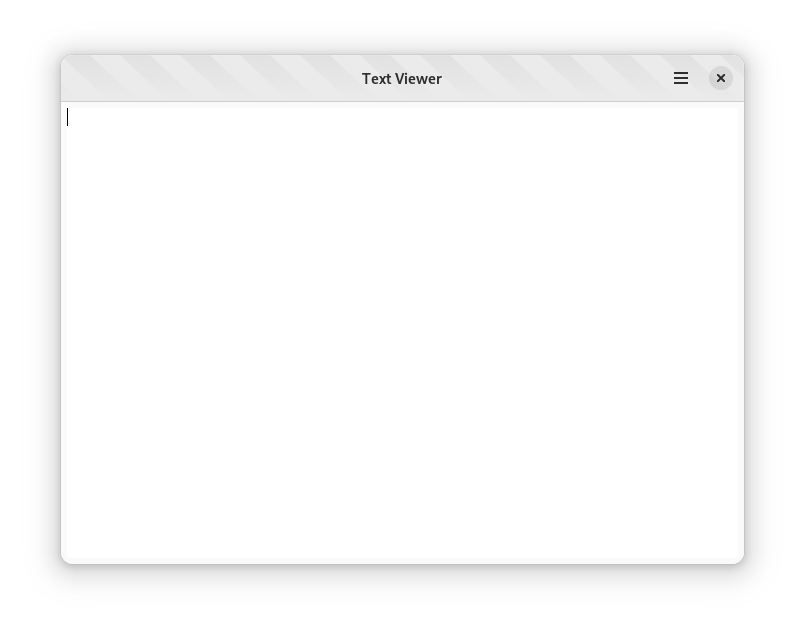
现在你可以按下 Run 按钮并验证窗口是否包含一个空的文本区域。
在下一课中,你将学习如何选择一个文件并将其内容加载到文本区域中。